Update CRM Records using Zoho Forms
- Create a form using Zoho Forms. - read more here.
- Make sure all fields in Zoho Form have corresponding field in Zoho CRM, if some fields are missing, add necessary fields in Zoho CRM. Not you should have admin privileges to be able to add new custom fields. Fields should be added to the module in which you want to update records using the form. So if you want to update Contact records, you need to add fields to Contact module. For details about how to add custom fields go here.
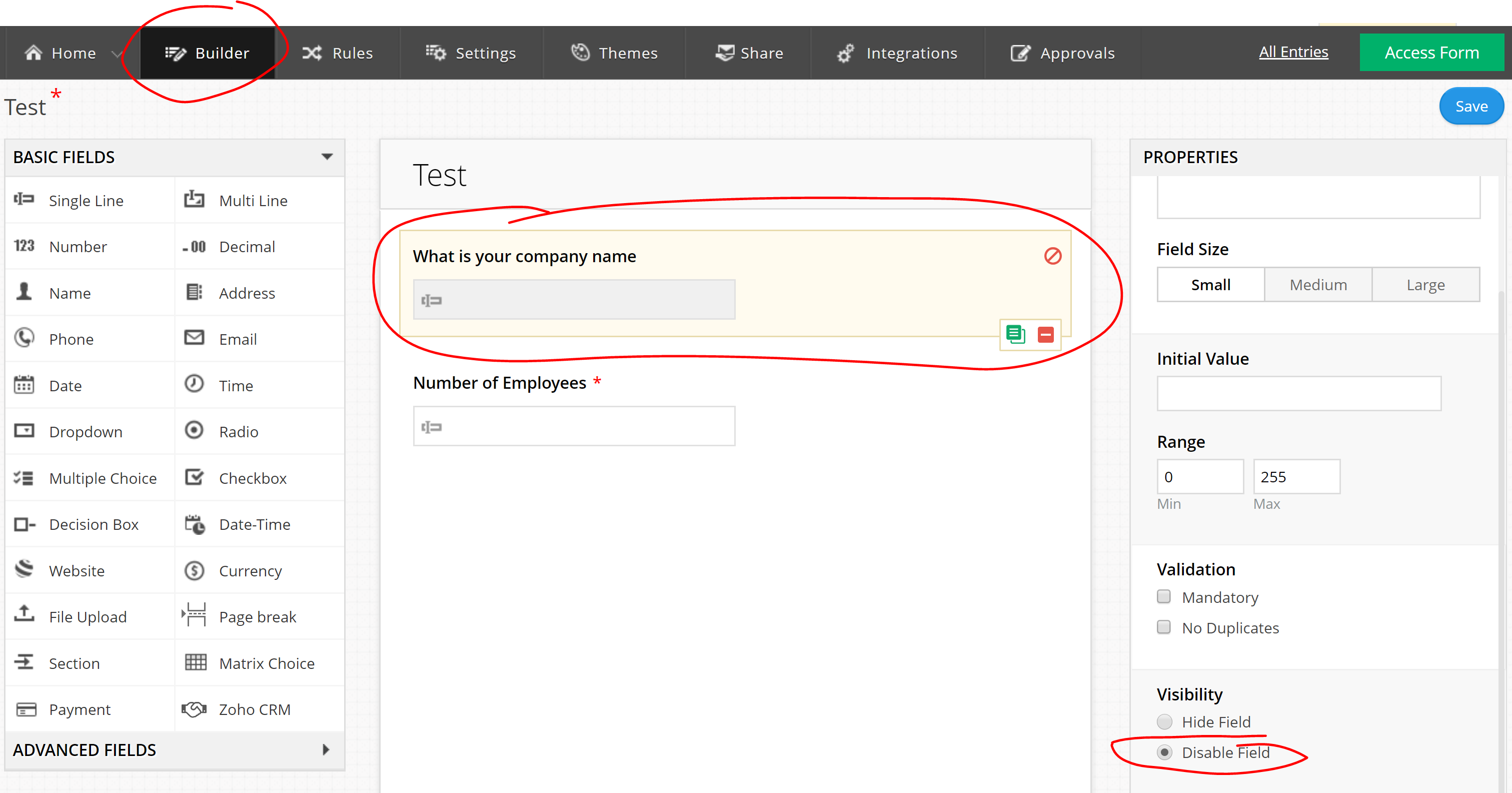
- Make sure to add ID field to the form, this field will be used to match form response to a record in CRM. Depending on the module you want to update records in this field will be different. For contact module it should be email, for Accounts module, the field should contain Account Name. You also want to disable this field in order to prevent people who fill in the form to change it. If they change the value, and it will no longer match your CRM record, and as a result the form will create new record rather than updating existing. In order to disable the field select the field in the build and click disable.
- Setup Zoho Form - CRM integration:
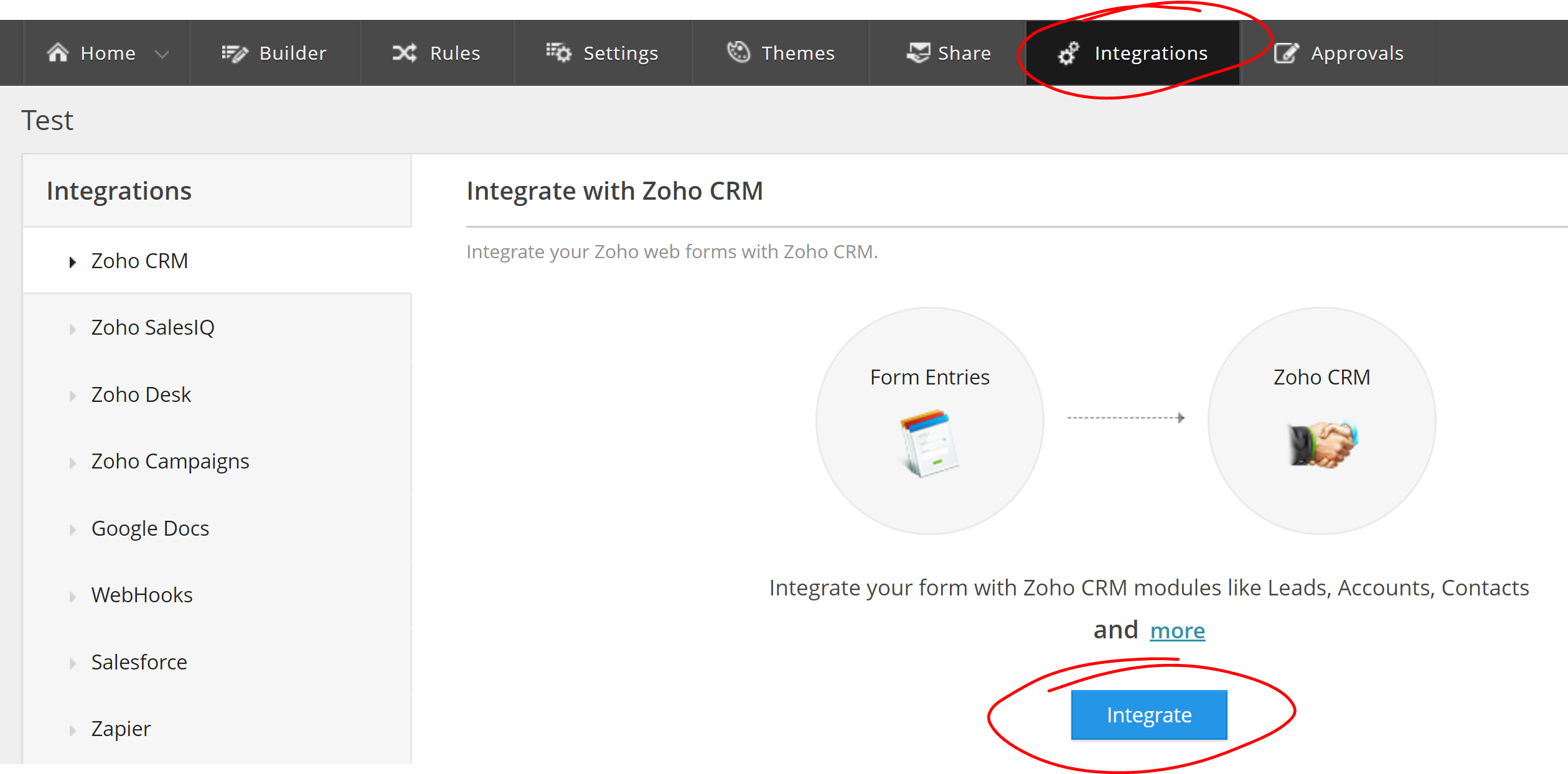
- Then select a module which records you want to be able to update, and map the fields. In the mandatory section you will see all required fields in Zoho CRM, and they all must have a value, you can also add additional fields in Other Fields section. Make sure to check Upsert record option, and make sure that the field indicated in the Upsert records is in the Form and mapped to a Zoho CRM field.:
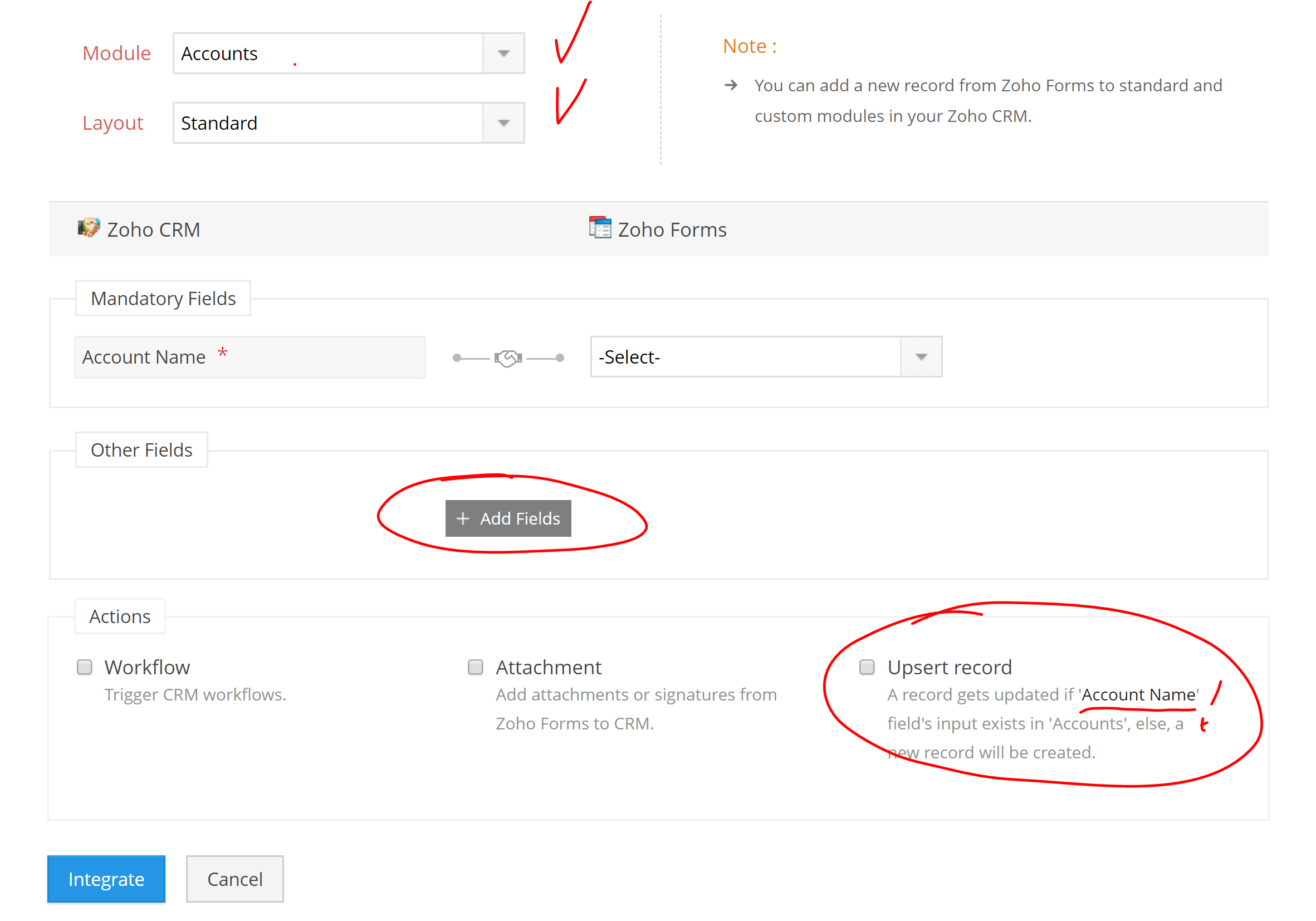
- Once you are done mapping all the fields, click Integrate.
- In order for the form to update CRM record, we will need to pre-populate ID field, and to do that we need to create field alias, you can find out how to do it here.
- You will need to get the form URL, to do so go to Share section and copy Form Permalink.
- Next you will need to create a template in Zoho CRM. The template will contain a link to the form with appended ID parameter:
- Got to Zoho CRM, click settings, and then Templates:

- Click +New Template button
- Selct CRM Module - note you need to select the module that has information about respondents - people who will be filling in the form, not necessarily the module which records will be updated by the form. For example, you might want to send a form that updates Account (company) information. But you will be sending that form to someone who works at that company, so you need to choose Contact module to send the form.
- Choose Layout
In the Template Editor, paste Form Permalin, at the end of the link add ?, followed by field alias and =, then type # and select ID field. Since we want to update Account record, we will select Account name. Note that when you type # and select field name a placeholder value will be created that will look like this ${Accounts.Account Name}.
- You can also add more design elements and content to your template, you can find out more here. You can also copy the URL you have created with all the parameters and add it to a button.
- Once your template is ready, you can go to a contact record of a person who is linked with particular account, click Send Email button, then click Choose Template at the top, and select the template you just created. Once you email the form, the user will be able to fill it in and the data will update Account record in Zoho CRM.
- Make sure to test that everything works properly. To do so, create test contact record with your email address, and link it to Test Account record. Then send the template to yourself, fill it in and see if all the info was update properly.
Related Articles
Zoho Basics
Hi there, in this article we will give a brief overview what is Zoho and what we can do with it :) Zoho is an all in one web-based business management platform. It includes more than 35 different applications including: Zoho CRM - to manage all your ...
Re-connecting your email to Zoho CRM after password update
If you have enabled integration between Zoho CRM and your Email, you should be able to send emails from Zoho and also see your emails in Zoho CRM. However if you change your email password the connection may break. If you are no longer able to send ...
Before sending your first Zoho Campaign
Here is a checklist to go over before sending your first campaign in Zoho Campaigns: Make sure you have a proper list Ensure that the footer information is proper: First make sure that your message about how you know the recipient is correct. You ...
Merging Duplicate Records in Zoho Manually
In order to merge duplicate records: Open a record which you know has a duplicate. Click on three dots menu in the upper right corner and choose Merge Duplicates Adjust search criteria in the dialog that opens to find a duplicate record, and select ...
Zoho Help Resources
Zoho Corporation provides a lot of resources for each of it's products. Please find some of the useful links below: Zoho CRM: Training Videos User Guide Knowledge Base You can learn more at Zoho CRM Help Center